

9 ChatGPT prompts to copy for meeting summaries and minutes
- ChatGPT prompts to copy for summarizing your meetings.
- A practical guide to capturing essential details
- Simplify note-taking and strengthen productivity
To write meeting minutes with ChatGPT, paste the transcript or your notes under a prompt that sets the structure of the document. The prompt below is based on prompt 1 and asks ChatGPT to stick to what was said.
You are an executive
assistant summarizing a
meeting.
Write the minutes from the
transcript below,
structured as follows:
- Participants: names and
  roles.
- Agenda: the key topics
  discussed.
- Key points: important
  facts, decisions made
  and their justification.
- Actions to take:
  assigned tasks,
  responsible individuals
  and deadlines.
- Follow-up: next meetings
  or scheduled
  checkpoints.
Only use what is said in
the transcript.
Only show a section if its
topic is mentioned.

Transcript:
[paste transcript here]
We've all faced this situation: a meeting where the exchanges are so fast that there's no time to write everything down. By the end of the meeting, we realize that we've forgotten important details, and finding information in the transcript becomes an impossible task. Luckily, AI tools like ChatGPT can solve this problem by summarizing the meeting from its transcript or your notes. Here, we present 9 effective ChatGPT Prompts to summarize your meetings and boost your productivity. Ready to improve your note-taking?
The 9 prompts, one per use
1. Detailed meeting minutes
Having a clear record of the discussions and decisions made during meetings is essential for ensuring good communication and project follow-up. An efficient meeting summary not only reminds everyone of what was discussed but also helps avoid misunderstandings. With a detailed summary, each participant is on the same page and understands their responsibilities.
Prompt: Meeting Summary
Provide a structured overview including:
🎤 Participants: List of names and roles of participants.
📋 Agenda: Summary of key topics discussed.
💡 Key Points: Important facts, decisions made, and justifications.
✅ Actions to Take: Assigned tasks, responsible individuals, and deadlines.
🔄 Follow-Up: Next meetings or scheduled checkpoints.
This prompt allows you to obtain an organized document that will serve as a reliable reference for all participants, facilitating a clear follow-up on each commitment, ensuring that everyone knows what they need to do.
Its copy-ready version opens this article.
2. A quick summary of the transcript
Sometimes, a simple summary of the discussions is enough. This type of synthesis is particularly useful when time is limited, and participants need a quick overview. It can also be shared easily, ensuring that all team members, even those who could not attend the meeting, remain informed about key points.
Prompt: Key Points from the Discussion
Summarize the meeting by focusing on:
💬 Major Themes: The main ideas addressed.
📊 Decisions Made: Important actions and choices validated.
📝 Next Steps: Upcoming actions resulting from the conversation.
This ensures everyone stays aligned on the essentials while eliminating unnecessary information.
Summarize the meeting from
the transcript below,
focusing on:
- Major themes: the main
  ideas addressed.
- Decisions made:
  important actions and
  choices validated.
- Next steps: upcoming
  actions resulting from
  the conversation.

Transcript:
[paste transcript here]
3. Action items, owners and deadlines
Effective follow-up is crucial for ensuring project advancement, especially when multiple tasks are discussed in a meeting. Clearly identifying who is responsible and when tasks should be completed helps reinforce productivity. This also provides visibility into the status of projects, allowing for the anticipation of potential delays.
Prompt: Extraction of Actions to Take
Create a list detailing:
🔑 Identified Tasks: All actions mentioned during the meeting.
🎯 Responsible Individuals: Who is in charge of each task.
📅 Deadlines: Due dates for each action.
This clarity improves accountability and helps everyone know their role.
From the text below,
create a list detailing:
- Identified tasks: all
  actions mentioned during
  the meeting.
- Responsible individuals:
  who is in charge of each
  task.
- Deadlines: due dates for
  each action.

Meeting text:
[paste the transcript or
your notes here]
4. Minutes in question-and-answer format
If you want to make information clearer, adopting a question-and-answer format can be particularly effective. This format prioritizes the most critical elements while making reading more fluid and accessible. It also encourages better interaction in future discussions, as participants can easily refer to specific questions.
Prompt: Q&A Format
Structure the information as follows:
❓ What key decisions were made?
✅ Summarize the decisions and their implications.
❓ What are the next steps?
✅ Recap the upcoming actions with their deadlines.
This format helps clarify essential decisions and anticipate participants' questions.
From the text below,
structure the information
as follows:
What key decisions were
made?
Summarize the decisions
and their implications.
What are the next steps?
Recap the upcoming actions
with their deadlines.

Meeting text:
[paste the transcript or
your notes here]
5. Your notes as key points
Overly long notes can be difficult to digest. By transforming your detailed notes into key points, you provide a quick overview of discussions.
Prompt: Summary in Key Points
Transform your detailed notes into:
🔑 Main Ideas: The most important points from the discussion.
📋 Tasks to Complete: List of actions in bullet points.
💡 Conclusions: Lessons learned or topics addressed.
This format simplifies complex discussions into concise and easily shareable information.
Turn my detailed notes
below into:
- Main ideas: the most
  important points from
  the discussion.
- Tasks to complete: the
  list of actions, as
  bullet points.
- Conclusions: lessons
  learned or topics
  addressed.

My notes:
[paste your notes here]
6. Decisions and issues to resolve
If you want to focus on decisive elements, ask ChatGPT to highlight them.
Prompt: Extraction of Key Information
Ask ChatGPT to:
⚡ Identify Essential Ideas: Synthesize the most important elements.
📉 Highlight Issues: Point out concerns to address.
✅ Document Decisions: Capture agreements made for future actions.
Focusing on these details helps avoid confusion and ensures productive discussions.
From the text below:
- Identify essential
  ideas: synthesize the
  most important elements.
- Highlight issues: point
  out concerns to address.
- Document decisions:
  capture agreements made
  for future actions.

Meeting text:
[paste the transcript or
your notes here]
7. Anonymize notes before sharing them
Protecting sensitive information is crucial to maintaining trust within the team and avoiding potential legal issues. Ensuring the confidentiality of discussions can be a delicate task, especially in a collaborative professional environment.
Prompt: Anonymization of Notes
Instruct ChatGPT to:
📝 Review Notes: Check for sensitive data.
🔒 Mask Details: Replace specific names and identifiers with generic terms.
💭 Preserve Consistency: Maintain clarity of information after anonymization.
This prompt allows for actionable meeting minutes once names and identifiers have been replaced.
Review the notes below and
check for sensitive data.
Replace specific names and
identifiers with generic
terms.
Keep the information clear
and consistent after
anonymization.

Notes:
[paste your notes here]
With this prompt, ChatGPT receives the notes before the names are replaced.
8. The follow-up task list
Having a clear list of tasks to be completed not only streamlines the process but also eases the tracking of responsibilities. A well-structured layout allows each member to easily access the details of actions to be taken. Moreover, it offers an overview of project progress.
Prompt: Detailed Follow-Up Actions List
Request a comprehensive layout including:
✅ Task List: Distribution of actions based on discussions.
📅 Deadlines: Assignment of deadlines for each task.
👤 Responsible Individuals: Assignment of missions.
Having a clear plan of next steps facilitates progress tracking and accountability.
From the text below, list
the follow-up tasks with:
- Task list: the actions,
  distributed based on the
  discussions.
- Deadlines: a deadline
  for each task.
- Responsible individuals:
  who takes on each
  assignment.

Meeting text:
[paste the transcript or
your notes here]
9. The follow-up email
Ensure that the conclusions of the meeting are well communicated with a recap via email. This serves as a reminder to participants about their responsibilities and ensures that everyone is on the same page.
Prompt: Drafting a Follow-Up Email
Write an email including:
📫 Recipients: List of participants.
✉️ Meeting Summary: Brief description of the objective.
🔑 Key Points: Main discussions and decisions made.
✅ Tasks to Be Completed: Assigned missions and responsibilities.
This guarantees effective communication and serves as a post-meeting reference.
From the meeting notes
provided, write a
follow-up email including:
- Recipients: the list of
  participants.
- Meeting summary: a brief
  description of its
  objective.
- Key points: the main
  discussions and
  decisions made.
- Tasks to be completed:
  assigned tasks and who
  is responsible.

Meeting notes:
[paste your notes here]
More email templates are in our article on follow-up emails written with ChatGPT.
What text should you paste into ChatGPT?
Paste the meeting transcript, or your notes.
With Record mode, ChatGPT records the meeting from its macOS app, on paid plans, for up to 4 hours. OpenAI says it works best in English today. On Teams, recording is started manually in the app. "In the Mac OS, app ChatGPT, you can also […] transcribe and record the meeting," a prospect pointed out in May 2026.
OpenAI asks you to get the consent of the people you record. The reminder shown by the app does not notify them for you.
Audio file uploads are not available on the Free plan. On the Instant model, they are limited to 6 minutes per recording: a one-hour meeting does not fit in a single file.
The transcript exported from Teams
"In Teams, you can record the meeting. Then I convert […] to text and send it to ChatGPT, which does the summary." This is how a prospect described their method in March 2026 (translated from French).
The organizer and co-organizers of a meeting can download its transcript as a .docx or .vtt file. Open the past meeting's conversation in Chat, then select Recap, Transcript and Download.
By default, other participants from your organization cannot download it. A participant from another organization sees it during the meeting, but can neither find it afterwards nor download it.
Transcription starts automatically when the meeting is recorded. Otherwise, start it during the meeting: More actions, then Transcribe.
Your notes, or a voice debrief right after the meeting
Without a transcript, some start from their notes. "I take my notes, which I've more or less jotted down on the fly. I put them into ChatGPT so it helps me organize them," a prospect explained in January 2026 (translated from French). For in-person meetings, another summed up their process in February: "it's flipchart, retyping, ChatGPT and then, then rework" (translated from French).
Others dictate a debrief as they leave the meeting: "When I leave the meeting, I immediately do a debrief in ChatGPT, which structures the meeting report for me" (February 2026, translated from French). Dictation also helps after an interview that cannot be recorded: "we dictate… and we record our debrief instead" (April 2026, translated from French).
ChatGPT turns the dictation into text, which you can edit before sending it.
What to add to the prompt so nothing is left out
Add the context that the transcript lacks: the meeting deck, the previous minutes and the questions the document must answer.
The general rules of a prompt, from role to format, are in our article on writing ChatGPT prompts.
The meeting deck or agenda
A prospect gave ChatGPT two documents: "the meeting deck and notes taken on the fly, in Word." They then reviewed the result: "I go over it for half an hour and I have minutes that, a year ago, would have taken me a day and a half" (May 2026, translated from French).
ChatGPT accepts Word, PDF and PowerPoint files, among others.
The minutes of the previous meeting
For a meeting that follows on from another, attach the previous minutes. One prospect does it "so that it has the thread of the whole thing" (February 2026, translated from French).
The questions the minutes must answer
A prospect pasted a Teams transcript with a simple request for a summary. They got "only stuff that wasn't interesting at all, everyone's unavailability" (April 2026, translated from French).
Others write "the essential questions" and a "reading framework" into the prompt (April 2026), or a script "where I box it in completely so it doesn't forget anything, because that's really what's at stake" (May 2026), both translated from French.
In the prompt, list the questions the minutes must answer.
What not to paste into ChatGPT
What you paste into ChatGPT is sent to OpenAI. Depending on your account, OpenAI may use it to train its models.
What OpenAI does with your conversations, depending on your account
| Account | Are your conversations used to train the models? |
|---|---|
| Free, Plus, Pro | Yes, by default. To prevent it, turn off "Improve the model for everyone" in Settings, Data controls. |
| Temporary chat, all plans | No, as long as it remains temporary. OpenAI may keep a copy for up to 30 days. |
| Business, Enterprise, Edu | No, by default. |
Sources: OpenAI Help Center and enterprise privacy page, accessed on November 13, 2026.
Audio from dictation is only used for training on a personal account that has chosen to share its recordings. Turning off "Include your audio recordings", in Data controls, stops this sharing.
Anonymize before pasting, not after
Some prospects anonymize their notes before pasting them. "We take our notes, we have to anonymize everything, then we go to […] ChatGPT," one of them explained in May 2026. Another admitted not doing it, in February: "I know it's not good, because we put in all the data, because the names are there." A third only uses ChatGPT for internal meetings "where no […] sensitive topic is discussed". All three are translated from French.
Replace names and identifiers yourself before pasting the text.
Review what ChatGPT produced
Check the action items and their owners first, then look for what is missing and what was added.
About the Teams transcript they paste into ChatGPT, a prospect pointed out in May 2026 "actions that aren't always done correctly and not always done at all. And that takes human time" (translated from French).
ChatGPT can also add information. "They invent arguments or they don't keep exactly to the script," a prospect said in February 2026. Hence the rule "Only use what is said in the transcript" in the prompt at the top of this article.
Even with clearer prompts, ChatGPT "goes a bit off the rails", according to another prospect, who added: "you always have to go back over it to be sure of what's written" (February 2026, translated from French).
Paste the full transcript rather than a summary. One prospect first had Claude summarize the meeting, then took that summary into ChatGPT to write the minutes. They noticed "a loss of information that is far from negligible" (April 2026, translated from French).
If the meeting was recorded or dictated in ChatGPT, OpenAI states that its voice transcripts are not verbatim records.
Point-by-point review, from decisions to figures, is covered in our guide to AI meeting minutes.
Stop pasting the transcript after every meeting
Optimizing the synthesis of your meetings can significantly enhance your team's efficiency. With ChatGPT prompts, you can simplify note-taking, strengthen accountability, and capture all essential details.
However, there are note-taking tools like Leexi that make the task even easier for you. With this platform, record your interactions and obtain transcripts and AI-generated summaries. Leexi offers a library of ready-to-use templates, and you can write your own from the AI-Meeting plan. Leexi's built-in summary generator applies one template per meeting type, allowing you to easily create meeting summaries that include follow-up tasks, key points, and more.
Try Leexi for free and unlock your potential.
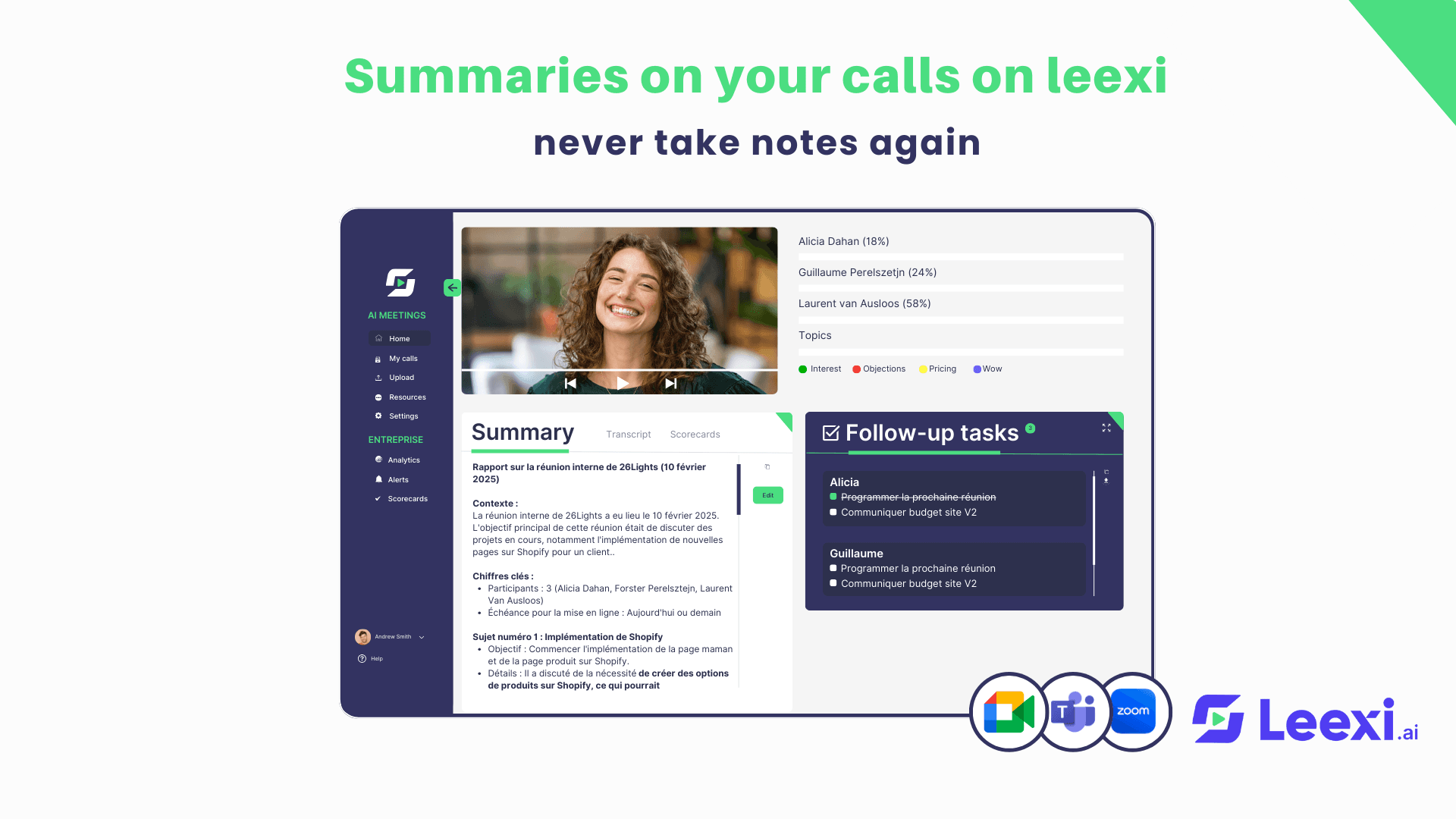
The prompt becomes the template for a meeting type
"Get a short report without having to go through ChatGPT with the copy-paste, export": that is what a prospect was looking for in February 2026 (translated from French).
In Leexi, your prompt goes into a minutes template. You create one template per meeting type: the information to bring out, the order of the summary, the level of detail, the speakers to take into account and the destination of the minutes. Leexi then applies the right template when it recognizes the meeting type.
A meeting that has already been recorded can be regenerated with another template.
What the template prompt still needs to specify
Rules go in the template prompt. In March 2026, a client had put table rules in the Description field, and they were not applied. Once the rules were moved, "the formatting works correctly" (translated from French).
The template must be linked to a conversation type, by a system administrator or a super administrator. Without this link, a client saw their meetings summarized with the template of another meeting type (March 2026).
In a pasted transcript, ChatGPT does not know who the customer is. In a Leexi template, an instruction such as "Take only into account what the $customers are saying" limits the summary to what customers say. The client who added it, in April 2026, found that it worked better.
The variables $customers and $company pick up the participants' names, and ## creates a section heading.
In January 2026, a client reported that information given at every interview was "rarely included in the minutes" (translated from French). Information that must appear in every set of minutes has to be written out in full in the template prompt.
The guide to customizing your meeting minutes template explains how to write the template prompt.
Frequently asked questions
Can ChatGPT record the meeting itself, without a transcript to paste?
With Record mode, ChatGPT records a meeting from its macOS app, on paid plans, for up to 4 hours per session. OpenAI says it works best in English today. On Teams, recording is started manually in the app. Audio file uploads are not available on the Free plan. On the Instant model, they are limited to 6 minutes per recording: a one-hour meeting does not fit in a single file.
Do you need to tell participants before recording a meeting with ChatGPT?
Yes. For Record mode, OpenAI asks you to get the necessary consents before recording other people. Its help page on meetings states that the reminder shown by the app does not notify other participants or obtain their consent for you.
Can you delete a meeting that has already been pasted into ChatGPT?
A deleted conversation is scheduled for permanent deletion within 30 days, unless OpenAI has to keep it for security or legal obligations. A temporary chat is not used to train the models while it remains temporary, but OpenAI may keep a copy of it for up to 30 days.
Does ChatGPT Business keep data in Europe?
No. On its business pricing page, OpenAI answers "No" to data residency in Europe for the Business plan. Data residency in Europe is offered for ChatGPT Enterprise, ChatGPT Edu and the API, for new workspaces only. By default, OpenAI does not use Business conversations to train its models. Leexi hosts data on AWS France by default, and its features comply with ISO 27001 and GDPR.
Can you query several meetings at once without pasting them into ChatGPT again?
In Leexi, Ask Leexi works like a ChatGPT connected to your Leexi workspace. It answers your questions from one or more meetings that have already been recorded, without copying and pasting a transcript. Ask Leexi is included from the AI-Meeting plan.
Which Leexi plan do you need to turn your prompt into a minutes template?
The Starter plan, at €12 per licence per month, includes no custom templates. AI-Meeting, at €23, allows 2 custom templates per conversation type, and Business, at €39, allows 4. The Leexi Coach add-on adds 8 more. These prices exclude VAT, with annual billing; with monthly billing, they are €15, €29 and €49. Leexi offers a free 7-day trial.
Further reading: Writing meeting minutes using AI · Automatic call & video summaries
Recommended Articles

How to Create Effective Prompts with Chat-GPT
Learn to craft effective ChatGPT prompts to boost business productivity and harness AI for smarter workflows
09/22/2026
Read more
AI meeting minutes: generate them, review them, share them
How AI turns a meeting into written minutes, what to check before sending them, and where to file them. Based on 1,753 conversations with Leexi users.
09/22/2026
Read more
Customize your meeting minutes template: one template per meeting type
One minutes template per meeting type: write the prompt, get the AI to recognize the meeting, test without breaking anything, send to the CRM.
10/12/2026
Read moreReady to boost your productivity with Leexi?
Leexi AI Notetaker takes notes for you