

Leexi MCP with Wonka Chat
- Connect Leexi's meeting intelligence to your Wonka Chat workspace
- Query your calls, summaries and documentation from your conversations and agents

Connect Leexi's MCP server to Wonka Chat. The Leexi MCP connector is already listed in Wonka Chat, so you don't even need to enter the server URL manually.
Prerequisites
- A Wonka Chat workspace
- An active Leexi account with at least one processed call
MCP Server URL
https://api.leexi.ai/mcp
Connection Steps
Step 1
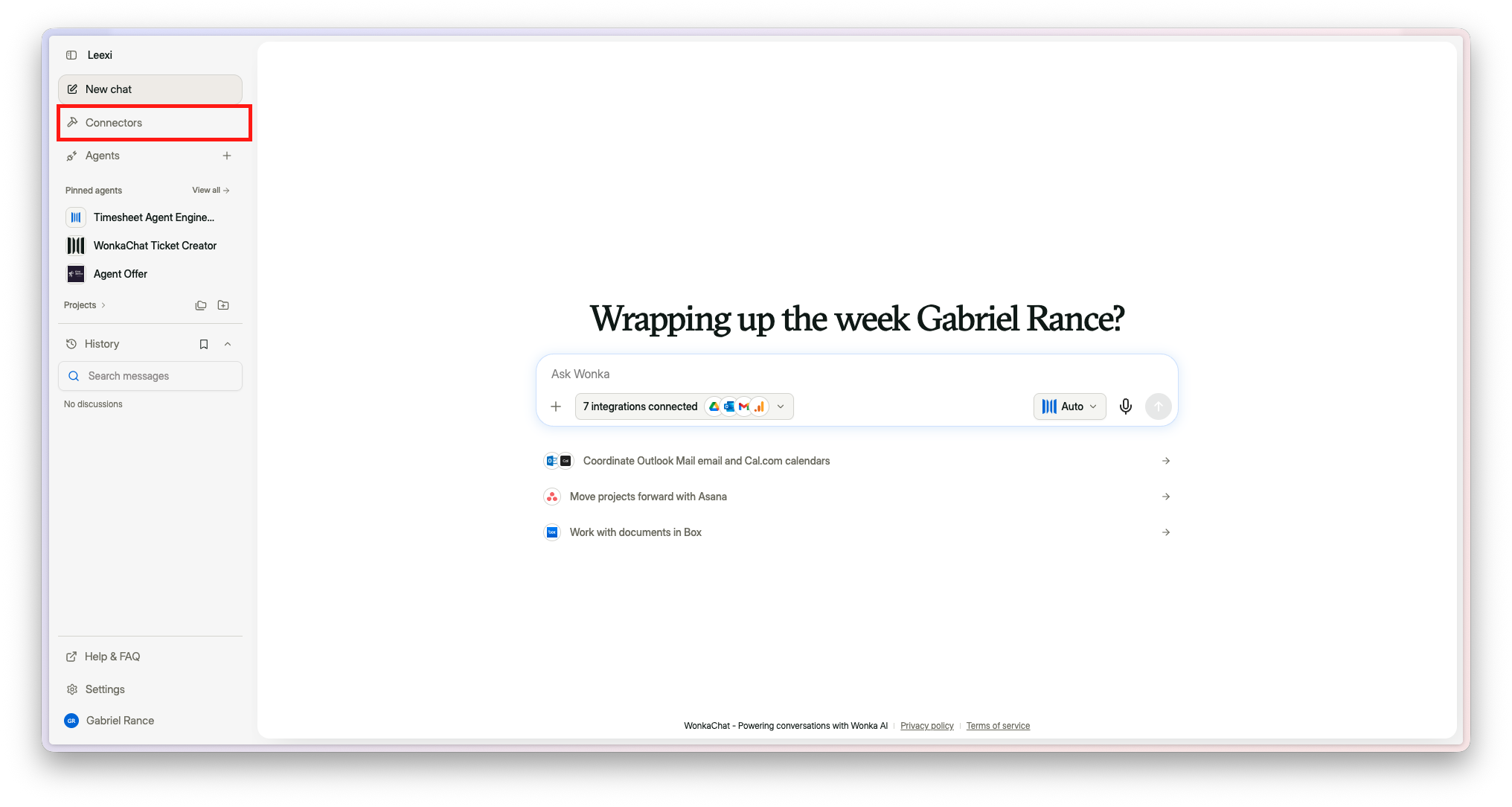
Open your Wonka Chat workspace, then select Connectors in the left sidebar.
Step 2
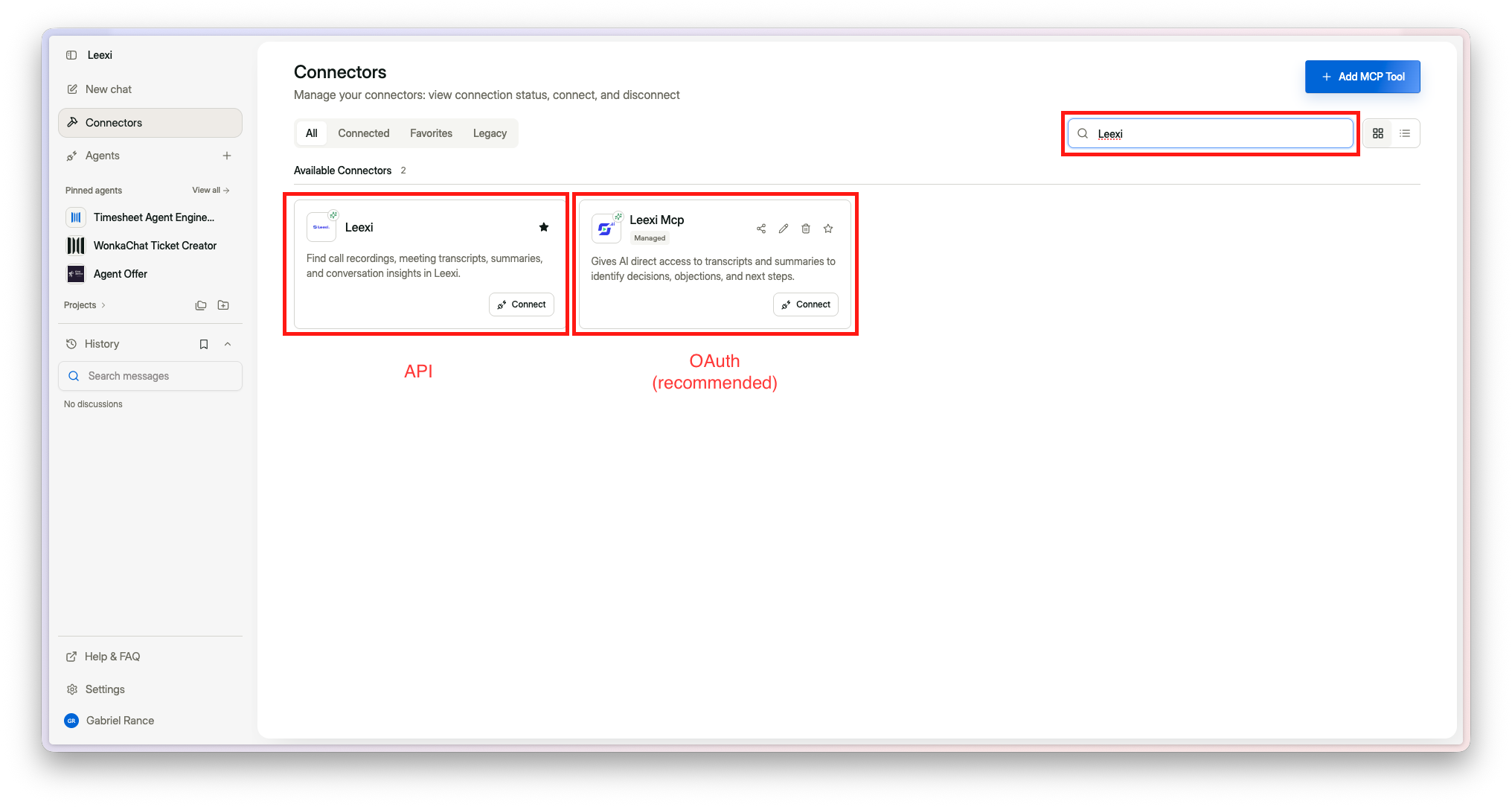
Search for Leexi in the search bar. Two Leexi connectors exist:
- Leexi MCP (recommended) — the managed connector, which uses the OAuth authentication described on this page
- Leexi — the connector that goes through Leexi's public API
Click Connect on the Leexi MCP card.
Step 3
Sign in with your Leexi account and click Authorize. That's it — Leexi's tools are now available in your Wonka Chat conversations and agents.
Step 4
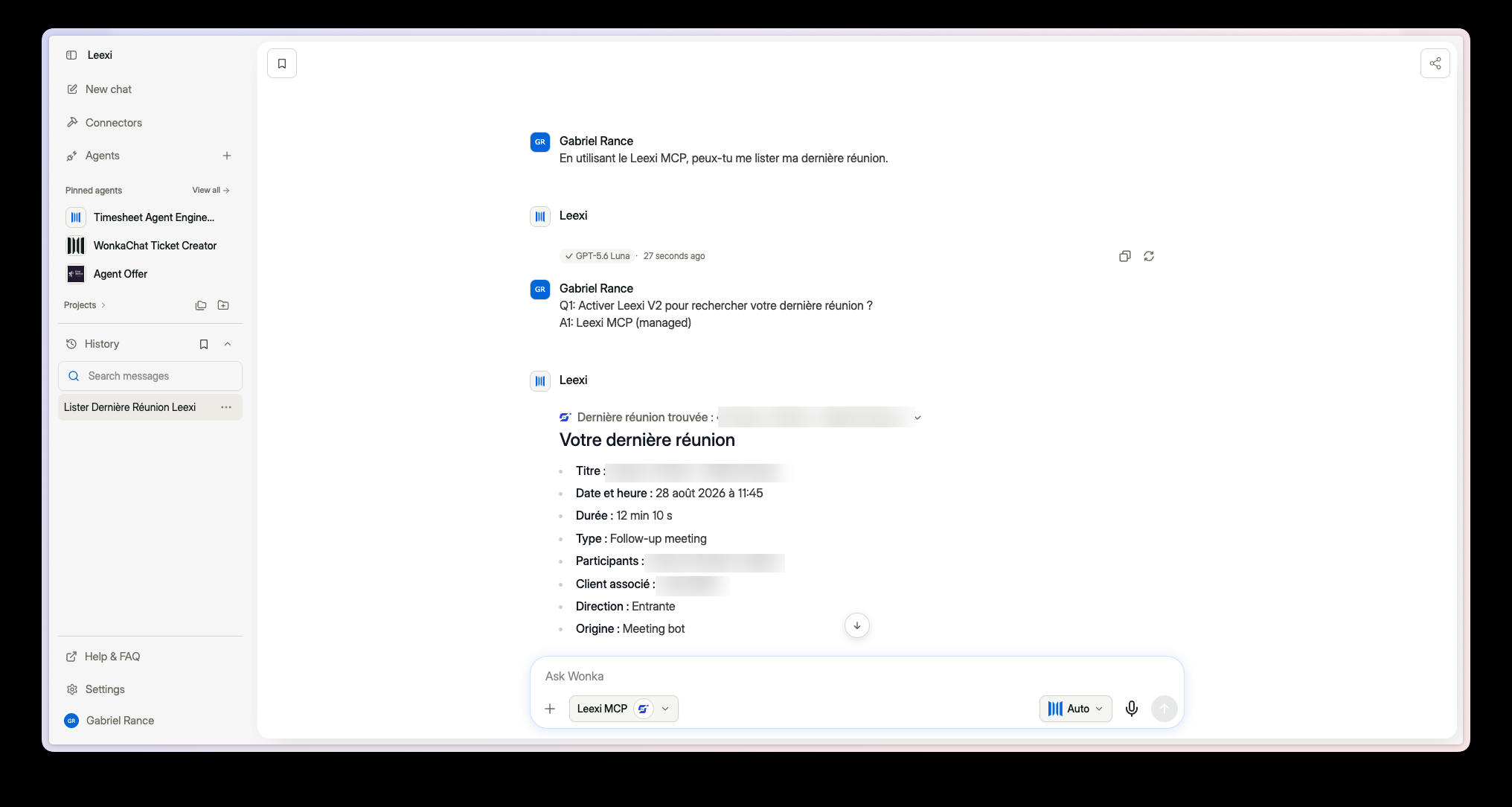
Select Leexi MCP in the message bar, then ask about your meetings in natural language.
What You Can Do Once Connected
| Tool | What it does |
|---|---|
query_calls |
Search your calls by date, participant, team, customer, and more |
fetch_call_details |
Get full summaries, follow-up tasks, and metadata for specific calls |
query_resources |
Search Leexi product documentation |
fetch_resource_details |
Get full content of documentation articles |
You can reference these tools in your Wonka Chat agent instructions to build workflows that query your meeting data.
Troubleshooting
"Unauthorized" or authentication error
- Disconnect and reconnect Leexi in Wonka Chat's connectors
- Verify your Leexi account is active
"No calls found"
- Ensure your account has processed calls with completed transcripts
- Try broadening your search (remove filters)
The Leexi connector doesn't appear in the list
- Check with your workspace administrator that connectors are enabled
- You can also add it manually via Add MCP Tool, with the MCP Server URL
https://api.leexi.ai/mcp— Leexi supports Dynamic Client Registration, so no Client ID or secret is required
Connection fails during authentication
- Ensure your browser allows pop-ups from
api.leexi.ai - Check that you're signing in with the correct Leexi account
If the issue persists, contact Leexi support at support@leexi.ai or via the chat widget at app.leexi.ai.
Ready to boost your productivity with Leexi?
Leexi AI Notetaker takes notes for you